Ideas based on your wardrobe
Use your style preferences, occasion and available pieces to request suggestions.
Put what you own to use. Build outfits, plan what to wear and see what a new piece would add before buying it.
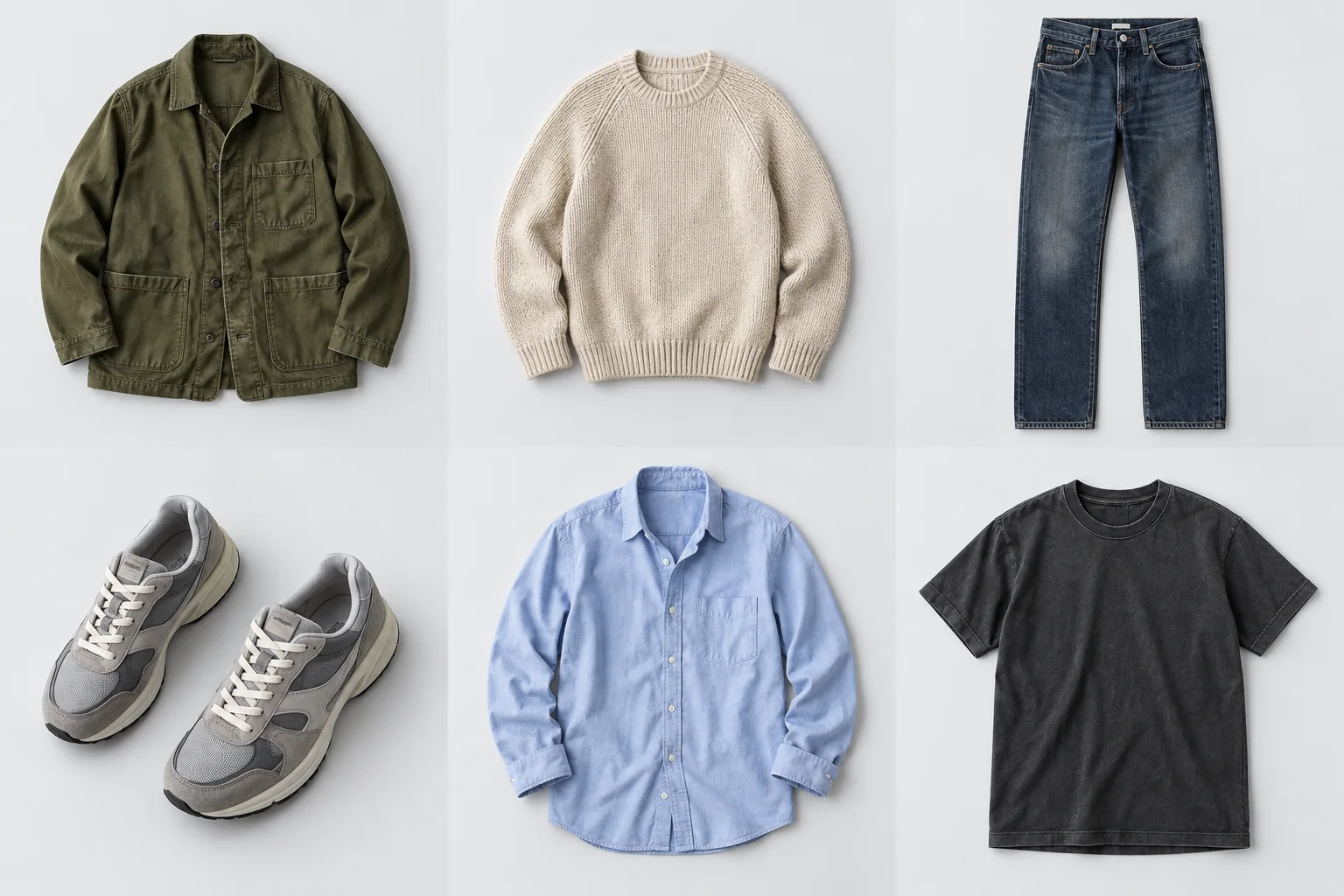
Swipe a row to try another piece. Pin the ones you want to keep.
Everyday jacket
Favourite tee
Straight-leg denim
Everyday runners
This example resets when you reload.
In Purchases, save links, photos or screenshots to Wishlist. Compare pieces with your clothes and group the ones you want into a purchase plan.
Keep the piece on a private board. Review the details extracted from a link, or add them yourself.
Compare pieces, set a budget and include shipping and other costs. Open external QC services and keep the reference you choose.
Purchases and payments happen outside EZ-Drobe.In Today, choose a saved outfit or request an idea with optional AI. In Calendar, give it a date and prepare the looks for your next trip.
Choose a marked date to see its outfit.
Planning an outfit and marking it as worn are separate actions.
It all starts with your own clothes.
Find a piece. Keep your favourites close.
Search, try the hearts or change a piece’s collection. This example resets when you reload.
In the app, upload several pieces at once and group their photos.
How to add your clothesNo need to photograph your whole wardrobe today. Start with what you wore, what just arrived, or what you keep looking for.
Upload photos of one piece or several at once. Group views of the same piece and choose its cover photo.
Add a name and category. Size, colour and notes are there when you need them.
Filter by category or colour. Keep your favourites close and organize pieces into collections.
Ask for an outfit idea, compare a possible purchase or review suggested photo details. You choose what to apply.
Use your style preferences, occasion and available pieces to request suggestions.
Compare an improved photo with its original before accepting it. You can restore the original later.
Choose a compatible model for each task and see the usage reported by the provider.
AI is optional. It requires an account, a personal OpenRouter key and credit. Manual organization and outfit building work without it.
A private space for your clothes, plans and Wishlist.
Yes. You can organize clothes and Wishlist, build outfits and keep plans in this browser. An account lets you access a private closet across devices. AI requires your personal OpenRouter key and credit.
Your closet has no public profile or feed. Local photos stay in this browser; account photos have private access. When you request AI analysis or photo improvement, the relevant image is sent to the provider. You decide when to request it.
Crop, rotate and remove solid-colour backgrounds manually. Optional AI can propose visible details or an improved photo for you to review. It does not verify authenticity, fabric composition or how a garment will fit you.
You can save a link, photo or screenshot manually. With an account, supported public pages can provide a preview of product details. Some shops block extraction; their details need to be entered manually. Always check the source and current price.
Open an external QC service, copy the W2C link and save the reference you choose with the piece. The external service may require an account or charge for its features. EZ-Drobe does not certify quality or authenticity.
Yes. In Your space, review and copy this browser's closet to your account, or export a backup with photos to restore later. Copying keeps your browser data and does not overwrite pieces already copied.
Yes. Use Install app or the guide in Your space. Back up a local closet before switching browsers. Full access to an account closet without an internet connection is not guaranteed.
Add a few favourites. Your next outfit starts there.
Start my closet